Data Structures & Applications is when we as professors often see students go from programmers to computer scientists.
Sorry if that sounds intimidating! But you will see that it is not as bad as it sounds. However, I do recommend that you give it a good amount of priority in your academics this semester. The concepts introduced and assignments completed in this class truly are the window to a deeper understanding and appreciation for the theory and structure behind how we write programs.
This course is lecture based. I recommend you take notes, by hand if possible. Nothing sticks in your memory quite like something you wrote down yourself. The lectures will also be published to this website before class so you can follow along.
After introductions, we’ll jump into the Syllabus.
Java & Python - A Brief Juxtaposition
Most of you (the audience) will be coming straight out of CMSI 185/1010, so let’s start by highlighting the biggest differences between what you’ve already seen and what you’re going to in this course.
Why Java?
The first question people typically ask when they hear it in this course!
Practice with an Enterprise Language: Java is used in many business settings and applications, so having experience with it can open many future doors!
Good Medium for Software Engineering Principles: Concepts such as organizing a code base, collaborating in a team setting, practicing test-driven development,
and many others are well enabled by Java.
The Alternatives Aren’t Great: C++ is a common alternative but is a bit of a lower-level language (i.e., closer to the memory / hardware, plus you see C++ later in the curriculum), and you’ve already seen Python, so time for a change of pace!
Let’s now take a peek at the biggest differences between Java and Python before we see some examples.
Compilation vs. Interpretation
Question
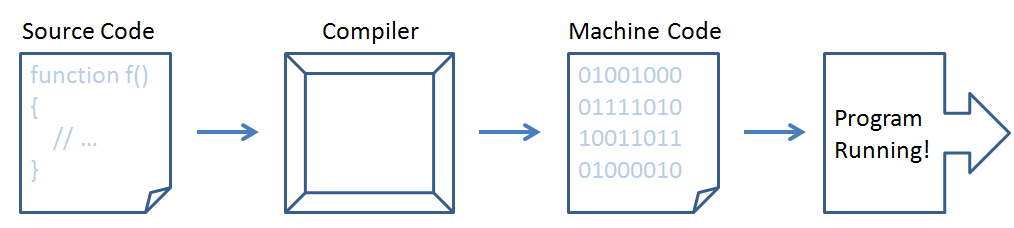
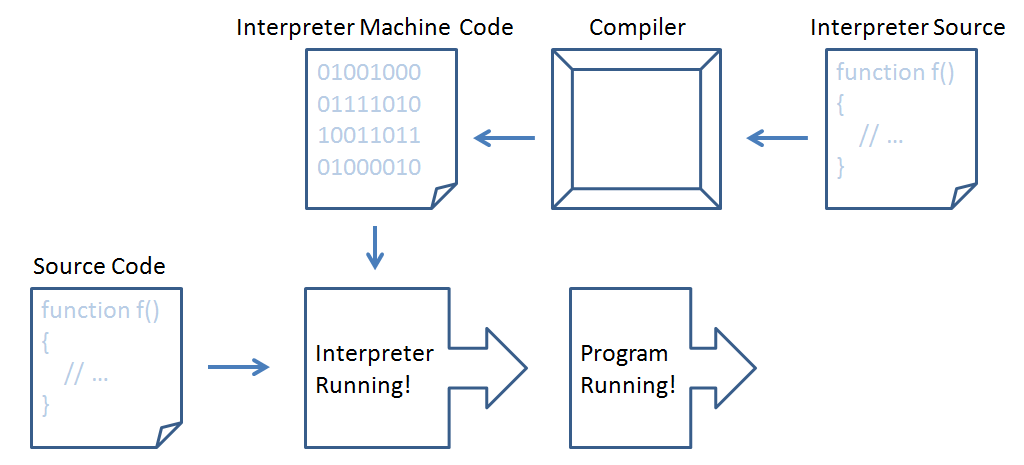
Explain what it means for Java to be a compiled language, but Python to be an interpreted one.
Answer
Compiled languages translate human readable source code into machine code, which is then run.
Interpreted languages take either source code files or individual statements (as in an interactive shell), which
are then executed by another program that has been written in / can translate to the language of the target machine.
So… why does that matter?
The biggest impact that you’ll notice in the transition is this:
The Python interpreter often allows code that has some errors in it to run, and only crashes once it hits that piece of code and notices there’s an issue.
During the compilation step in Java, the compiler will notice these errors while it compiles, preventing you from running the program until you’ve fixed those errors.
To illustrate this dichotomy, we’ll run these two chunks of code to see the difference:
# These first few lines run just fine. They're printing,# assigning a variable, and printing that variable.print("Step 1: running fine")x = "hello"print("Step 2: still fine, x =", x)print("Step 3: about to break")# But right here, we do something wrong. We call# a method on x, which is a String, which does# not exist for the String class. The program# will crash when it reaches this line.x.not_a_real_method()
public static void main(String[] args) { System.out.println("Step 1: running fine?"); String x = "hello"; System.out.println("Step 2: is it still fine? x=" + x); System.out.println("Step 3: maybe it's already broken..."); x.not_a_real_method();}
In the Python program, we managed to run it and have at least some of the code execute before the program crashed on us. In Java, we never even got a change to run it! The compiler made sure to catch our error and point it out.
Typing
No, not the kind you do on a keyboard…
Question
What is a “data type?” (often referred to as “type” for short)
Answer
A classification of data and information with expectations for their properties and behaviors.
Example
For instance, an int is a data type for whole numbers, with expectations to hold numerical values and be amenable to, for instance, arithmetic operations
like + and /. Strings store textual information, and also have a + operator, but this operator has a different expectation!
# Python4 + 4=> 8"cat" + "dog"=> "catdog"
Remark
Here’s the biggest difference that you’re going to experience between Python and Java:
Definition
In Python, types are dynamically inferred, which means they are deduced during runtime without the programmer’s specification.
Definition
In Java, types are statically manifest, which means they are explicitly declared by the programmer before compiling and running.
Some other notes you might’ve caught from the above:
Recall that variables are used to provide names to values like with int_var being a (not great) name for 8.
In Python, variables are written in snake-case with underscores separating words like int_var, but in Java, they are written in
camel-case (because of the humps heh) with the first letter lower-case, and first-letters of subsequent words in the variable name as upper-case.
In Python, single line comments begin with a #, and in Java they begin with //
In Java, every statement (a basic unit of execution like assigning a value to a variable) must end with a semicolon;
Well crap, declaring types looks like a huge pain in the ass, why do we bother?
Question
What are some benefits of manually declaring types that offset the extra work placed on the programmer?
Answer
Better error detection: type clashes in dynamically typed languages may be permissible when they weren’t intended
Better documentation and usage transparency: functions with inferred parameter types can be more difficult to use without proper documentation, and more error prone
Better compilation and run time: inferring types takes computational power that is freed when types are declared; easier compile-time optimization.
Remark
Disclaimer: most modern languages have neither 100% statically-manifest or dynamically-inferred typing (some aspects of each), though you’ll find that the bulk of your
coding will exploit one or the other in a particular language.
For example, Java recently (in Java 10, which on the scale of Java is recently) introduced the var keyword to infer declared variable types — largely, its use is discouraged because of the loss of efficiency and clarity
that manifest typing in Java brings (put differently: why use Java if you’re not using it for its perks?)
Here’s what that looks like:
var x = 5; // inferred as intvar s = "hello"; // inferred as String
That’s all about Java we’ll talk about today…
Note: Although Java is this course's language of choice, the lessons you'll learn permeate almost every programming language!
So what the heck are we using Java to learn anyways?…
Data Structures
So, what are we doing here? What is this course about?
First, I want to talk about “data types.”
Definition
A data type is a classification of data and information with expectations for their properties and behaviors.
For example, you probably came across a handful of data types in your time learning Python:
When you think about an integer, a string, or a list, you probably also think about a set of characteristics you’ve come to expect of them. What kind of data they store, how that data can be manipulated, accessed, and changed. For example, let’s say we wanted to add another one of our professors, Dr. Delaram Yazdansepas, to my_list, sort it alphabetically, then print it.
So, back to the title of our class: data structures!
Definition
A data structure is a concrete implementation of a data type. Whereas a data type specifies what properties and
behaviors can be expected from a particular object, a data structure describes how they are specified, stored, executed, etc.
Remark
Analogy:
Data Types : Data Structures :: Using A Calculator : Creating a Calculator’s Circuitry
The primary difference: you don’t necessarily need to know how a calculator is implemented to use it… but you will to build one!
The same is true for the distinction between data types and data structures; in this class, you will understand how to be an effective calculator builder… or something like that.
This class will focus primarily on the design, use-cases, and analyses of various data types, and how to best implement them in a data structure.
Why take Data Structures?
An excellent question apart from being forced to in the CMSI curriculum!
Remark
I. It will make you a better, more efficient, and more organized programmer (and prepare you for internships that often ask related questions from this class!).
To not appear self-aggrandizing, I’ll enhance this claim with quotes from others wiser than I:
Quote
“Bad programmers worry about the code. Good programmers worry about data structures and their relationships.”
Linus Torvalds (Father of Linux)
Quote
(related) “…good data structures make code very easy to design and maintain, whereas the best code can’t make up for poor data structures.”
[Anecdotal paraphrasing from a UCLA professor] I once consulted for an engineering firm that organized their records so poorly, that within a week, I improved a search
operation that previously took 2 days and made it take seconds.
David Smallberg
Quote
“Taking this course will set you above your self-educated peers, because you have to know about a hammer before you even know to use it.”
Andrew Forney.
(^ Quoting the professor that came before me and that loves a shout-out!)
Remark
II. You need to choose the right tool for the right job, and making that determination sometimes requires you to look “under the hood” and be able to analyze
what you look at.
Put differently: There’s a difference between just getting something to work, and getting it to work well.
This is one of the biggest differences between self-taught and college-educated programmers.
In computer science, choosing the wrong tool can lead to efficiency problems, messy/uninterpretable code, and poor scalability.
Remark
III. Fluency in data structures has recently led to some of the more impressive developments in several computing subfields.
To name a couple:
In artificial intelligence, the popularity of the artificial neural network (a type of DS) has made waves in the subfield of deep learning.
In security, block chain (a type of DS) has seen a good amount of motion for decentralizing data and created a new paradigm of encryption.
Too long, didn't read:
Why are Data Structures important to study? Chiefly, understanding optimal ways to implement various data types will make you a better, more efficient programmer.
Well organized and implemented code with a smart usage of data structures ensures your programs will run faster and be easier to maintain and build from. In computer science, choosing the wrong tool can lead to efficiency problems, messy/uninterpretable code, and poor scalability.
So, stick around and you’ll learn a lot! This class is one of the more monumental in your evolution as a computer scientist, and succeeding herein will pave a path directly into your future!
But before we do that, we have a bit more work to do to get up to get set up before we can really start the programming.
Quick Start
Before we go any further, there’s some stuff to download - primarily the IntelliJ Idea (Java IDE) and Git to your local machine. Here is the tep-by-step to make sure everyone is on the same page. Here are the instructions: Development Environment Setup
Basic Java Compilation
Definition
Java is a compiled language where programs are run in the Java Virtual Machine (JVM).
Definition
The JVM allows any program written in Java to run on any computer equipped with a Java runtime environment.
This means that, unlike Python (which runs from an interpreter), Java code is run on a “spoofed” virtual machine suited to the computer running it.
Why should you care? Because the details of compiling and running a Java program will feel very different than running a Python one.
Let’s make sure we’re equipped to do so now with some of the basics before we look at development environments that perform more heavy lifting later.
Here’s the basic format of compiling and running a Java program:
---
config:
flowchart:
subGraphTitleMargin: { top: 10, bottom: 24 }
---
flowchart LR
SRC["<b>SupWorld.java</b><br/><i>source code</i>"]
CLS["<b>SupWorld.class</b><br/><i>bytecode</i>"]
SRC -->|"javac"| CLS
CLS -->|"classloading"| LOAD
subgraph JVM["The JVM — a program running on your CPU"]
LOAD["<b>class loader</b><br/><i>reads and verifies</i>"]
TYPE["<b>SupWorld</b><br/><i>a live type in memory</i>"]
EXEC["<b>execution engine</b><br/><i>runs the bytecode,</i><br/><i>one step at a time</i>"]
LOAD --> TYPE --> EXEC
end
style JVM fill:#84a59d2e,stroke:#84a59d,stroke-width:2px
Read that diagram left to right, and notice where the dividing line falls: javac gets you as far as the .class file and then
stops. Everything after that happens inside the JVM — your .class file is not something your computer knows how to run on its
own. The JVM is the piece that loads it, makes sense of it, and does the actual running, which is why the same .class file works
on your Mac and on your neighbor’s Windows laptop: each machine has its own JVM, and each JVM speaks its own CPU’s language.
Notice also what the JVM box is not: it is not a stage that hands off to your CPU when it finishes, and it is not a separate piece
of hardware. The JVM is a program, running on your CPU like any other program — everything inside that box is already your CPU
doing work. The execution engine walks through your bytecode and carries out whatever each instruction says, which means your
bytecode never reaches the CPU on its own: the JVM is always the thing standing in between.
(Loosely adapted from Figure 1-1 of your textbook, Java in a Nutshell.)
Definition
Source code is human-readable program instruction; in Java, source files end with the .java extension.
Definition
Machine code is machine-executable program instruction — the raw numeric instructions a physical CPU understands.
Definition
Bytecode is machine code for a machine that doesn’t exist: it’s the instruction set of the JVM rather than of any real CPU.
javac translates your .java source files into .class files full of bytecode, and the JVM is what turns that bytecode into
instructions your actual CPU can run.
Step 0: Download Preliminaries
To follow the rest of this lecture’s tutorials, let’s make sure you’re all set up with the necessary software.
Make sure you’ve followed the instructions in the tutorial below before continuing herein:
The command-line compilation walkthrough that follows is the only place we use the “Optional” part of the setup tutorial — a JDK on your system
PATH, plus a plain text editor. It is optional because I will demo every step of it live in class, and because from the next lecture onward we work
inside IntelliJ IDEA, which supplies both.
Install them if you want to follow along on your own machine here; otherwise just watch, and make sure you have IntelliJ IDEA ready for what comes after.
Step 1: Open your favorite text editor!
You can use anything from Notepad to Textedit to Atom to VIM to Sublime… whatever, this example will be short, and we’ll soon pivot to more complex development
environments beyond this simple example.
Once open:
Save a new file called SupWorld.java (Where else to start but the classic “Hello World?” …but with a cool spin on it 8))
Remember where you saved it! You’ll need the file path later.
Step 2: Define a Class
Toolkit
Every concrete code we write will be situated in a Java class that shares the name of its .java file.
Toolkit
To declare a class that’s publicly accessible to anyone, we use the syntax:
public class ClassName { // ... Class body goes here}
In the above:
The public keyword is called an access restrictor, which we’ll talk about later — the public keyword means the thing we’re
restricting… isn’t restricted at all, but visible and usable by everyone! We’ll see other access restrictors that do limit access later.
The class keyword tells the compiler that we’re about to declare a new Java class that holds variables, methods, and other data called members.
The ClassName is a placeholder — whatever we want to name our class goes here (by convention, uses camel-case WITH the first-letter capitalized to distinguish
these from other identifiers).
Debug
Since our source file is named SupWorld.java, our class must be named SupWorld, so let’s do that now…
Step 3: Define a Main Method
Toolkit
For most simpler Java programs, execution/running the program begins in what is known as the main method.
Toolkit
The main method has a particular syntax and goes within the class body:
// Main method signature:public static void main (String[] args) { // Main method body: // Code in here will be executed when run}
Remark
IOU Explanation: We won’t talk about method signatures just yet, so the public static void main (String[] args) part will remain a mystery for now.
This is one of the obnoxious parts of learning Java: a lot has a middle-out explanation, but before we get there, let’s just get something to print out.
Step 4: Print Something Out
Toolkit
Just like Python’s print(str) method, Java has a (more verbose) tool to print content to the console: System.out.println(str).
So, since we want something to print out when the program runs, we’ll add this to our main method:
public static void main (String[] args) { // Prints the String "Sup, World!" System.out.println("Sup, World!");}
Thus, the full file in SupWorld.java should be something like (without any comments and cleaned-up spacing):
public class SupWorld { public static void main (String[] args) { System.out.println("Sup, World!"); }}
Make sure you save the file, it’s time to compile and run!
Step 5: Compile the Source
Toolkit
The Java Compiler can be invoked at the terminal/command line via the syntax javac ClassToCompile.java
To do so, you’ll need to:
Open either Terminal (Mac/Linux: CMD+Spacebar then search for Terminal) or Command Line (Windows: WINDOWS+R, then type cmd, and enter).
Navigate to the file you saved in Step 1 by using the cd command. For example, if you saved the file on your desktop on a Windows machine, you’d enter:
cd C:\Users\yourusername\Desktop
Type javac SupWorld.java to compile your code.
Toolkit
If everything went well, you should see a SupWorld.class file in the same directory — that’s the bytecode the JVM can now run!
Remark
You can try opening SupWorld.class in a text editor, but remember: this is bytecode that will not render into the ASCII characters we can read, so will
look like gibberish!
Step 6: Run the Code!
Toolkit
The Java Runtime Environment executable can be invoked at the terminal/command line via the syntax java ClassName.
Debug
Note here: When you compiled you used the file name with the .java extension; NOW you do not.
So, we’ll type: java SupWorld and should see it print “Sup, World!” in response!
[Optional] Step 7: Make an Intentional Mistake
Just to see how things can go wrong, let’s forget to put a semicolon after our print statement, and then try to recompile with: javac SupWorld.java
A syntax error is one that prevents successful compilation; all syntax errors must be resolved before a .class file is produced.
Question
If we were to then type java SupWorld in the console, what would happen?
Answer
Beware! This is a source of confusion for many beginners! The program appears to run successfully because the OLD SupWorld.class
(when we didn’t have the syntax error) was never overwritten when we failed to compile a second time.
Java is very picky! BUT, note one of the benefits of compiled languages: we learned of our error immediately without the pain of having to discover it potentially later while running!
Java Projects
Now that we have a bit of context for where we’re heading, let’s dive into some greater specifics.
Remark
Because we will be programmatically implementing data types in data structures, it’s important we know about good Java project
management to be able to handle projects of sufficiently greater scale than SupWorld.
So, let’s take a quick detour to set the stage for how larger-scale projects are managed as well as being introduced to the tools to successfully do so.
Java Project Organization
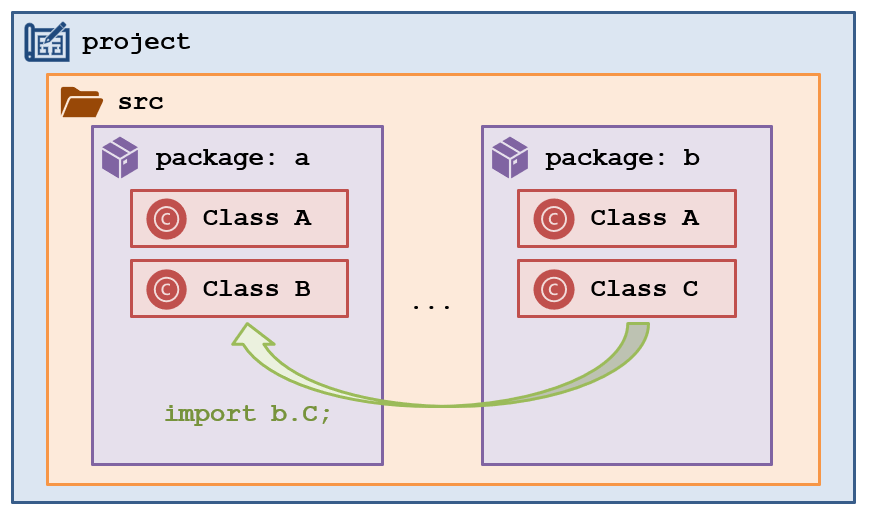
Development of any Java product usually follows a basic hierarchy of organization for the source code that we write:
Definition
A Project contains all of the top-level elements including source code, tests, documentation, build configurations, etc.
Toolkit
All source code in a Java project is generally rooted in a top-level folder called src.
Projects are generally local to some development environment (see future section on Development Environments), and organize all of your code that is intended for a single
purpose / project.
However, since Projects can grow large, we have to be careful to organize its contents or we’d never be able to keep track of everything… for this purpose, we use Packages:
Definition
A Package is a grouping of related classes that also give them a shared namespace and special access restrictions.
Definition
A Namespace is a grouping of identifiers (names for variables, functions, etc.) in some scope so that names for things can be reused.
Let’s build some intuition around namespaces…
Question
How can there be multiple Elm Streets in the world without the post office getting confused?
Answer
Consider that there are Elm Streets in multiple cities: in this analogy, cities are like namespaces that allow for us to reuse the
street name “Elm” without there only being 1 Elm Street allowed in the world!
The above intuition also applies for cities in states, etc.
Toolkit
For this reason, packages can also be nested one inside the other, and mimic the encapsulating directory structure of the project.
For instance, a math package might have sub-packages calculus and trigonometry for different groupings of useful functions.
Packages are also named in all-lowercase letters, by convention.
We would indicate these subpackages by a full package name of math.calculus and math.trigonometry, respectively.
This also means that, within the file system, there is a math folder with subfolders calculus and trigonometry.
Definition
We then implement the source code (Classes, Interfaces, etc.) within the context of a given package, often utilizing resources from other
packages as well.
Toolkit
When we invoke an import statement to use other source code in our own, we are also specifying the package to which a
particular class or set of classes belongs.
# Python: importing the mean function from statisticsfrom statistics import meanmean([1, 2, 3])=> 2
Using the above, we would be able to create and use any of the contents of the java.util.ArrayList class in our own code!
The ArrayList is one of the first data structures we’ll examine in this course… but no spoilers here just yet!
Question
Why do you think we organize our development into packages?
Answer
The charm of this organizational structure is that we can develop our own classes which may employ others without having to worry
about namespace conflicts (e.g., naming your class and someone else’s the same thing), making it easier for us to organize our own projects (logically into modular
components), and even making debugging more focused.
With all of that said, let’s get set up with a development environment and then practice with these paradigms over the next week or so!
Java Development Environments
Because we’ll be dealing with projects that have multiple packages, classes, unit tests, and more, we’re not going to want to compile and run via the command line — that’ll take
forever and can be error-prone!
As such, for this course, you’ll be using a fancy new tool known as an Integrated Development Environment:
Definition
An Integrated Development Environment (IDE) is a program that bundles many helpers for software development, including: language-specific text editors,
compiler warnings, code suggestions, debuggers, unit-test integration, and much more!
Debug
Warning: IDEs can be intimidating at the start, but you’ll grow to love them as you gain comfort — they’re used all the time in industry, so it’s good to get some
experience with one now!
Let’s spend some time getting you set up with an IDE and then show how your development cycle will look on SupWorld.java situated in a package structure.
IDE Primer
Step 0: Download Preliminaries
Debug
This tutorial assumes you’ve completed all parts of Step 0 in the “Basic Java Compilation” section! Make sure you’ve done so first.
Step 1: Choosing a development environment.
Complete the IntelliJ IDEA setup instructions in the “Essentials” section of the tutorial here:
This one’s easy: just create some folder on your computer that you will dedicate to your Java source code.
IntelliJ IDEA does not have a single shared “workspace” the way some other IDEs do — each project is its own folder that you open independently — so it is
up to you to keep that folder tree tidy.
Definition
For scalable workspaces, you should create subfolders to organize your code. For example, you may have a workspace folder nesting like:
C:\Users\yourprofile\workspace\lmu\cmsi-2120\
Good workspace organization will save you many headaches in the future!
Definition
Note: because we are using PostCommit for the assignments in this course, you will have one top-level Project folder per assignment in
your workspace.
So, for example, you might accept the first assignment from PostCommit and place it in the folder:
From the menu bar, select File > New > Project... (or New Project from the Welcome screen).
Give the project a name like java-sandbox and pick the Location you set up in Step 2. Leave the Language as Java, set the Build system to
IntelliJ, and make sure the JDK dropdown names a JDK. Then click Create.
Toolkit Download JDK... right there,
pick the latest LTS version with Eclipse Temurin as the vendor, and hit Download. That is all IntelliJ needs.
If that dropdown is empty — which it will be if you skipped the optional command-line Java install — choose
Debug
Leave “Add sample code” unchecked so you start from an empty project — we are going to write the class ourselves in Step 5.
You should see a new Java Project with some subfolders appear in the Project tool window on the left. Note the special src folder in which all of
your code will go.
Step 4: Create a new Package
Let’s just make a simple nested package for now, and call it main.sandbox.
Toolkit
Generally, projects under development have a main and a test package wherein all subpackages are mirrored such that everything developed in
main has some associated tests under test. We’ll see this later!
In IntelliJ IDEA:
Right click on your project’s src folder, then choose New > Package
For the package name, choose main.sandbox — this actually creates 2 packages: main, and then a sub-package inside called sandbox.
We’ll notice that the package is currently grayed out because there’s nothing in it! It’s just a folder on our file system until we add some code to it.
Remark
[Optional] To see how packages are structured on the file system, right click on the src folder and choose Open In > Explorer (Windows) or
Open In > Finder (Mac). Notice that they’re just folders for which our Java project has been configured to understand as packages!
Step 5: Create a Java Class
We’ll reuse our previous example but show how it looks in a Java package:
In IntelliJ IDEA:
Right click on the main.sandbox package, and choose New > Java Class. Name this SupWorld like before.
It will open in the editor as soon as you create it (and you can always double click it in the Project tool window to get back to it).
Notice that IntelliJ has filled in some parts of the file
already including the Class signature and the package declaration at the top (required to work with packages).
Transplant our main method from earlier into the new file; we should have the following at the end:
package main.sandbox;public class SupWorld { public static void main(String[] args) { System.out.println("Sup, World!"); }}
Step 6: Compile and run!
Here’s where all of our meticulous set-up pays off… we don’t have to do anything at the command line!
In IntelliJ IDEA:
Open the file you wish to compile and run.
Simply click the green ▶ Play Button in the gutter next to your main method (or the one at the top right of the window)!
If everything works, we should see the console pop up with our “Sup, World!” message!
Remark
[Optional] Remember when we left the semicolon off our hand-compiled version? Try deleting the semicolon again and notice that our IDE alerts us of the syntax error
in advance!
And that’s it! This is just the tip of the IDE iceburg… we’ll see more impressive features later in the class.
Toolkit
You should make sure that you’re able to swiftly accomplish the above steps to develop a workflow for yourself.
Version Control & Git
Definition
Version control systems help you to manage project checkpoints, collaboration, and backups.
Toolkit
The most popular in our trade is Git and its associated cloud repositories, GitHub.
Let’s talk a bit about the various locations your code exists, and then the actions that help you manipulate it.
Remark
This is a very cursory overview for the tools you’ll need for this class — there are many cool features of Git like branches and merges
that we won’t discuss yet.
Git Places
Remark
Using Git is a lot like traveling through space and time — your Project can exist in multiple places and as multiple versions all at the same time!
Definition
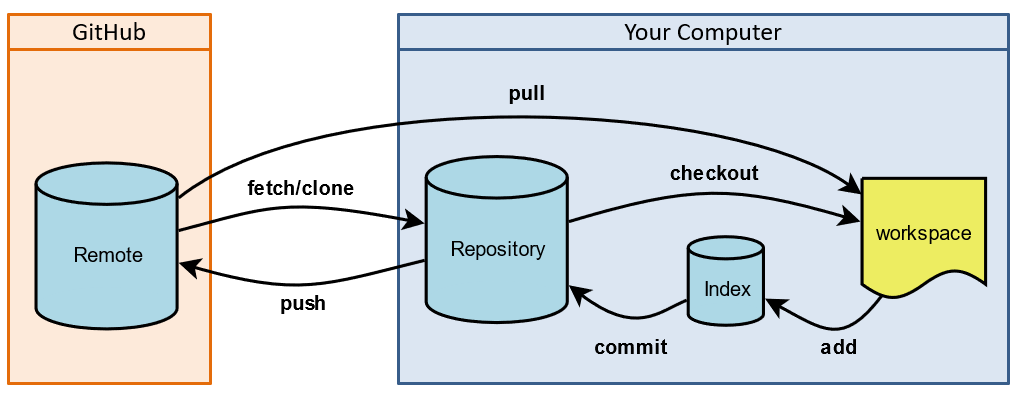
You can think of the Local Repository as your Project with different versions (commits) every time you make a checkpoint/commit.
Definition
Your Workspace is the active version/commit of your repository/Project.
Definition
Your Remote Repository is a cloud storage of your Project and its various commits.
We’ll be using GitHub as our cloud-storage remote repository manager (it’s the industry standard and great to get experience with).
Remark
Importantly: your remote and local repositories can have different sets of commits.
Question
Why is it important to have a remote version of your repository?
Answer
Several reasons, among others:
It gives you a safe backup for your Projects in case something happens to your computer.
It serves as a central point through which a team can collaborate on the same Project.
Definition
The index is a staging ground between your workspace and local repository.
Since commits tend to be reserved for units of change like adding a feature, fixing a bug, etc., you usually do not want to make a new commit/checkpoint until you have a set of changes
that should all go at once. That’s what the index/stage is for!
So how do all of these versions/commits play nicely together? Let’s take a look at the ways we dance around the places above.
Git Actions
The best way to show the actions you perform using Git is through an example — I’ll show you how it works in-class and then you’ll have an opportunity to try it out on the first
classwork exercise!
Example
Let’s see how you’ll clone a Java project from a remote repo, make some changes, and then re-commit those!
Step 0: Setup Git Preliminaries
By now I’m sure you have, but make sure you’ve setup all of the essential preliminaries here:
Note: whenever the tutorial below mentions the “terminal,” I’ll assume you’re using Git Bash on Windows and the system terminal on Macs.
Step 1: Clone a Repository
This will determine where your local repository lives in your computer’s file system.
Open a terminal and then navigate to wherever you’d like your local repository to be stored. I recommend something like the following:
C:\Users\yourusername\git\lmu-cmsi2120-fall2021
Use the cd path command to change directories to the parent folder wherein you’d like the repository to live (where “path” is a placeholder for the file
path like above; you might type something like cd C:\Users\yourusername\git\lmu-cmsi2120-fall2021).
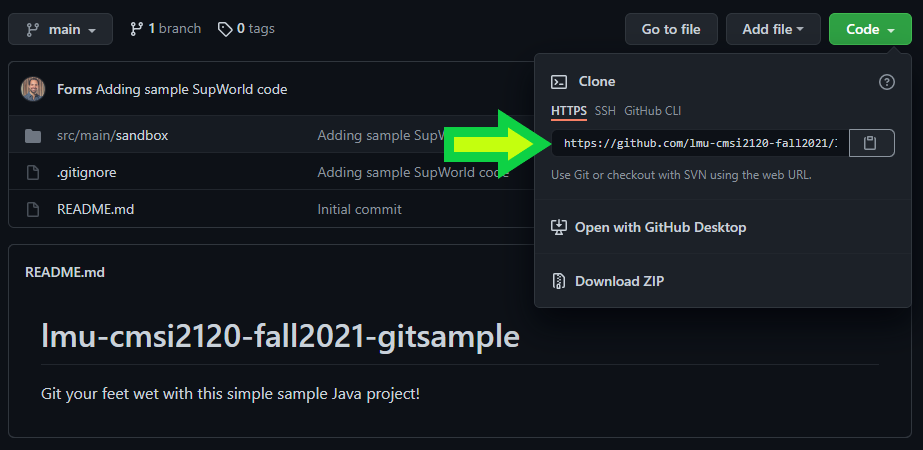
Find the GitHub repository that you’d like to clone on your own computer. This will typically be supplied by a PostCommit link and be available on the green
Code button on any GitHub repository page, like the following:
Clone the repository through the command git clone <repo> where <repo> is a placeholder for the link you copied in the previous step.
If all goes well, you should see some print out like the following:
…and yes my computer is named FORNTRON-OMEGA
Step 2: Open it in your IDE
Now that we’ve cloned the remote repository onto our machine, it’s time to open it in our IDE! This will correspond with the workspace folder from above.
In IntelliJ IDEA:
Go to File > Open... (or Open from the Welcome screen).
Navigate to the repository you just cloned in the previous step, and select the repository folder itself — the one containing src.
Debug
Warning: the next steps are the most commonly missed, read carefully before you start writing any code.
Click Open, and choose Trust Project if IntelliJ asks whether you trust the authors.
IntelliJ opens the folder as a project. Look at the Project tool window on the left: you should see the src folder with the assignment’s code inside it.
If the code in src isn’t recognised (no package icons, red imports), right click the src folder and choose Mark Directory as > Sources Root.
Confirm a JDK is attached: File > Project Structure > Project, then set the SDK field to a JDK (use Download JDK... there if the list is empty).
[Optional] this is where you would make any other build configurations like adding JUnit to the classpath (which we’ll use later, but not in this tutorial).
Careful
IMPORTANT: open the cloned repository folder itself — not the folder above it, and not an individual .java file.
Opening the wrong level is by far the most common reason a project looks empty or refuses to run.
Step 3: Do Some Codin’
Alright! Now we can actually work! :sweat_smile:
At this point, the code’s in our IDE, the git repository is configured, and we can begin to make changes to the codebase.
Example
Let’s make a single change: modify the message that gets printed out in our SupWorld’s main method!
Try to run the program again just to make sure everything works.
Step 4: Stage Desired Changes
Suppose we’ve been working (well, in that last step, not particularly hard…) and have a nice set of changes we want to bundle together into a commit.
Before we save the project’s checkpoint as a commit, we first have to stage any changes to the index.
BUT before even that, let’s look at a couple of tools for tracking changes that deviate from our repository’s current version.
At this point, we’ve only modified SupWorld.java, so:
Consulting your IDE’s project explorer clearly indicates which files have been modified or added; in IntelliJ’s case, modified files are shown in blue, and
newly added files that git isn’t tracking yet are shown in red
Toolkit
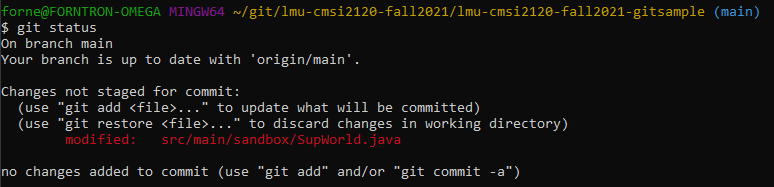
You may also use the git status command from within your local repository.
It will tell you which files have been modified or staged to commit.
For example, at this point, we would see:
Note in the above that we have modified, but not yet staged, SupWorld.java. To do so, we’ll simply:
Toolkit
Use the git add <files> command to stage files that will be bundled into a checkpoint / commit, where <files> is either a path
to a single file, a folder containing multiple files to be staged, or simply a period . to add all modified files to the index.
So, for example, we could type either: git add ./src/main/sandbox/SupWorld.java or git add . to stage SupWorld to the index.
Now, type git status again and note that our changes are waiting to be committed!
Step 5: Commit!
Time to make a checkpoint in our repository via a commit!
Toolkit
Use the git commit -m "<commit message>" command to create a checkpoint with all staged files, where "<commit message>" is a
placeholder for an instructive message saying what that commit represents.
For us, we might type something like git commit -m "Changed SupWorld print out for illustrative purposes".
If we don’t see anything after that, huzzah! Everything went well, and we’ve successfully made a checkpoint to our Local Repository.
Remark
NOTE: At this point, however, our computer’s local version of the repository is now ahead of the version on GitHub!
Step 6: Push!
In order to push our local repository’s version to the cloud, it’s time to synchronize using the push command.
Toolkit
The git push command is used to push local repository changes to the remote GitHub repository.
So, simply typing git push (which can be customized with parameters but need not be here), we should see some progress updates in the terminal, and then can check
the associated GitHub repository page and see our changes there!
Step 7: Repeat!
Whew! Thus is the iterative process of software-development and version control! Code a little, make a checkpoint, push, rinse, repeat.
It’ll feel a bit verbose at first until you get used to the process, and then, like anything you practice, will become second nature.
As I mention earlier, this brisk tutorial leaves off a lot of the powerful tools that Git provides, but the above is, at minimum, what you’ll need to succeed in this class.
[Optional] Pulling Updates
Suppose you are working on a team and another team member makes changes to the repository, pushes those to the remote, and then your local copy is now out of date — what to do?!
Well, if push comes to shove, then we come to pull!
Toolkit
The git pull command can be used to update the local repository with changes from the remote.
To simulate the team setting for us, we can just do the following:
Go to your repository on github.com
Using their web-editor, change the message in SupWorld.java, and make a commit on the remote directly.
Back on your terminal, execute the git pull command from within the repository.
You should notice that the changes on the remote are now on your local version!
Debug
Warning: if you and the remote embark on separate timelines and get out of sync with your development, pulling will force you to execute a merge
operation, which is a necessary pain in the butt. If you ever find yourself in such a situation,
read this article.
Git Advice
And no, that’s not the title of my work-in-progress self-help book for programmers, it’s just a few good rules of thumb to help you use Git:
Commit Errorless Code: Never commit code that has errors in it — if you want to make a checkpoint and save your work with a remote backup, at the very least,
comment out code that currently doesn’t work so that you may return to it later.
Commit at Regular Intervals: Finish a part of an assignment? Add some tests? Make commits at regular intervals, though not necessarily after every tiny change.
This will give you points that you can back-up to if you ever need to regress, and also makes sure you never lose work in the case of disaster (I’m looking at you, laptop-coffee-spillers,
the night before the homework is due).
Use Git at the Terminal, not just the Website: this is a technical skill that many internships and hiring companies will ensure that you are proficient with,
so best to learn now despite the intimidation surrounding it… and remember to ask questions!
Alright… that’s enough listening to, and watching, me by example… time to do some work yourself!
Classwork
Now, give it a shot on your own! See the following Classwork page for info on how to set up your development environment, your PostCommit membership, and
other vital parts of the workflow that you’ll need moving forward.