Time to Git it done… here are few preliminaries about this tutorial:
Definitions
Definition
Git is a version control tool that serves an invaluable role in the software development cycle. It helps you save your work at regular, modular intervals, roll out and back changes, and a myriad of other uses.
Definition
GitHub is a remote repository for your local Git repositories, allowing your version control to be backed up the cloud, accessible from any computer with internet, and enables a variety of team collaborative tools.
Definition
PostCommit is the app we use in this course to deploy assignments as personalized repositories that you will use to acquire your starting code skeletons, manage your work as you develop iteratively, and then finally to submit your products. It is also where your quizzes live — see the PostCommit Quizzes portion of the syllabus.
By now, you’ve likely used GitHub in other classes but may be unfamiliar with the procedure for PostCommit, and especially, if you’re using IntelliJ IDEA to manage your version control.
As such, the tutorial below has snippets that will guide you through some of these murky waters.
Preliminaries
By now, I’m assuming you’re familiar with the fundamentals of Git, and have a sufficient grasp on using its operations
(e.g., add, commit, push, pull, ...). For a refresher, watch some of the videos here:
Assignment
Definition
Make sure you have also set up your SSH Key or Personal Access Token for your GitHub account to be able to use Git’s command line tools; when doing so ensure that you give your token full permissions and make sure it never expires following the tutorial here:
Assignment
Careful
IMPORTANT: When creating your PAT ensure that you (1) set the token to never expire (or else you’ll have to do this again every semester) and (2) give yourself admin rights to ALL of the checkboxes when creating the PAT. Cloning and pushing will not function properly otherwise.
Remark
For setup instructions for IntelliJ IDEA and the JDK, see Development Environment Setup.
Finding Assignments
Debug
Before beginning, ensure you can sign in at lmu.postcommit.ai with your LMU credentials and that you can see CMSI 2120 listed. There is no registration step — I add you to the roster. If you do not see the course, contact me.
Independent of your development environment, your first task is to accept the assignment and find your repository’s address.
-
Sign in at lmu.postcommit.ai with your LMU credentials.
-
The first time only: complete the Connect GitHub item on your dashboard.
Careful your GitHub account access to it -- until you connect that account, there is nothing for you to open.
This one is not optional. PostCommit creates your repository under the course’s GitHub organization and grants
-
Open the assignment from your dashboard and click Accept.
-
Team assignments only: create a team, or join a teammate’s with the private join code they share with you. You must be on a team before you start work — everyone on a team shares one repository. Groups are a maximum of 3 for this course.
Debug team matchmaking: flag yourself Looking for Team and you will be placed with others looking for teammates. Do not start work solo on a team assignment hoping to merge it in later.
If you have no team, use PostCommit’s
-
Once accepted, the assignment page shows Your repository is ready. Click Open repository to jump to it on GitHub.
-
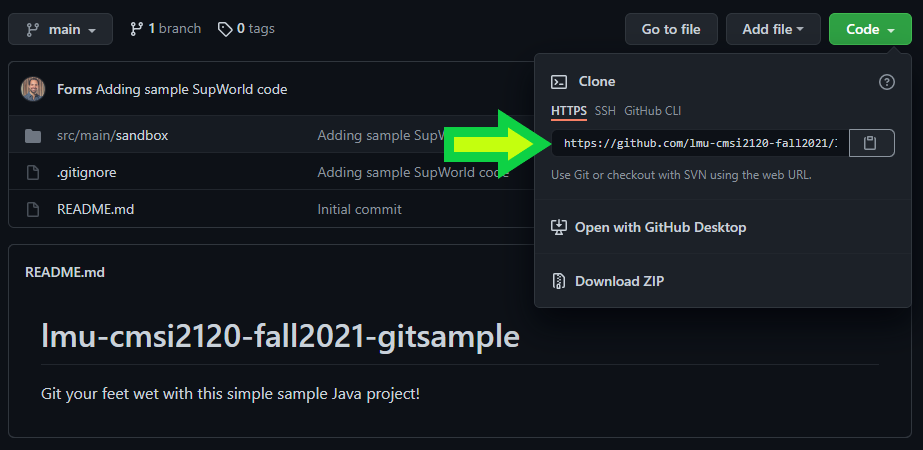
On the repository page, click the green Code button and copy the HTTPS address.
Remark
Your repository is private — only you (and the course staff) can see it.
With this URI in hand, continue on to the section below that gets you set up in your particular environment!
Standard Git
This will determine where your local repository lives in your computer’s file system.
-
Open a terminal and then navigate to wherever you’d like your local repository to be stored. I recommend something like the following:
C:\Users\yourusername\git\cmsi2120-fall2026Use the
cd pathcommand to change directories to the parent folder wherein you’d like the repository to live (where “path” is a placeholder for the file path like above; you might type something likecd C:\Users\yourusername\git\cmsi2120-fall2026). -
Find the GitHub repository that you’d like to clone on your own computer. This will typically be supplied by a PostCommit link and be available on the green Code button on any GitHub repository page, like the example from a previous year:
-
Clone the repository through the command
git clone <repo>where<repo>is a placeholder for the link you copied in the previous step. -
If all goes well, you should see some print out like the following:

Submitting Assignments
Once you’re ready to commit changes to your repository, perform the following:
- Ensure that you’re in your terminal directory of your local git repository (typically: the folder above the
srcfolder in your repo—the one with the README.md file) - (Optional) type
git statusto make sure you have changes ready to be made — you’ll see files that you’ve edited reported by this executable if so. - (Optional) type
git pullif working in a team setting to make sure you’re working from the most updated version of others’ changes. - Type
git add -Ato add ALL changed files, otherwise, you can target specific files to be staged for the commit - Type
git commit -m "INSERT_MESSAGE_HERE"where you’ll replaceINSERT_MESSAGE_HEREwith an informative note of what this commit accomplishes. - Type
git pushto commit your changes to your remote GitHub repository — it is this step that officially “submits” your assignment.